Bambu Studio Quick Start Guide
Apr 27,2025 | JKS
What is Bambu Studio?
Bambu Studio is based on PrusaSlicer by Prusa Research, which is from Slic3r by Alessandro Ranellucci and the RepRap community.
Bambu Studio is our cutting-edge, feature-rich slicing software developed by Bambu Lab, which is used to prepare the files for 3D printing. It contains project-based workflows, systematically optimized slicing algorithms, and an easy-to-use graphic interface, bringing users an incredibly smooth printing experience.
System Requirements
- Windows 10 or higher
- Mac OS X v10.15 or higher
- Linux Ubuntu 20.02 or higher/Fedora 36 or higher (Linux version needs to be downloaded from github)
- Intel® Core 2 or AMD Athlon® 64 processor; 2 GHz or faster processor
- OpenGL 2.0-capable system
- Recommend 8GB RAM, at least 4GB
- 2.0 GB or more of available hard-disk space
Download & Installation
- Download Bambu Studio
- Install Bambu Studio by following the step by step guide
Setup Wizard
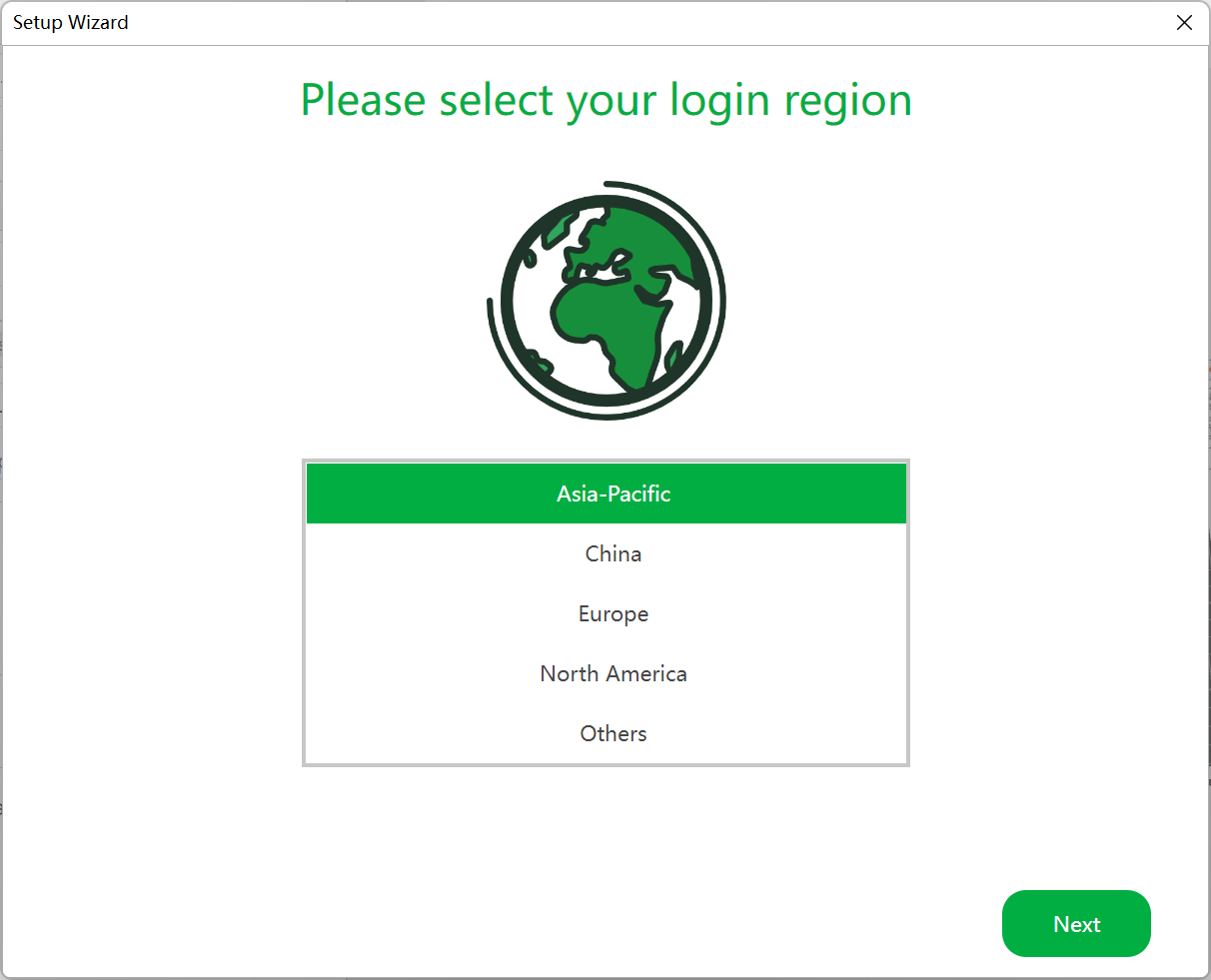
Select Login Region
The first step is to select the region you are located in. A user account registered in North America for example, cannot log in if the region is set to China.
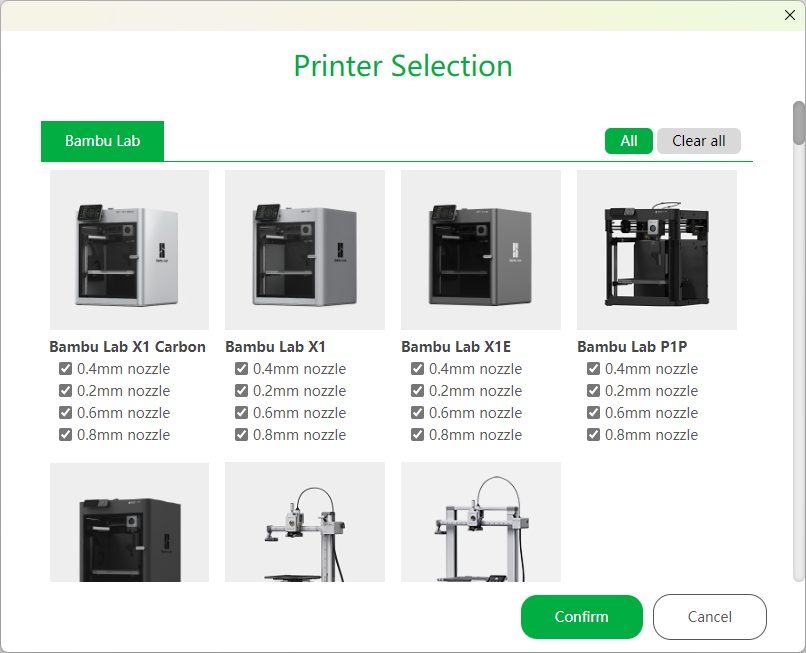
Printer Selection
Choose the printers/nozzles that you would like displayed in the slicer operation menu. You may select any or all of the options available to you. These options can be altered at a later stage through the slicer menu should you wish to only choose one at this stage and decide to change nozzle size at a later stage.
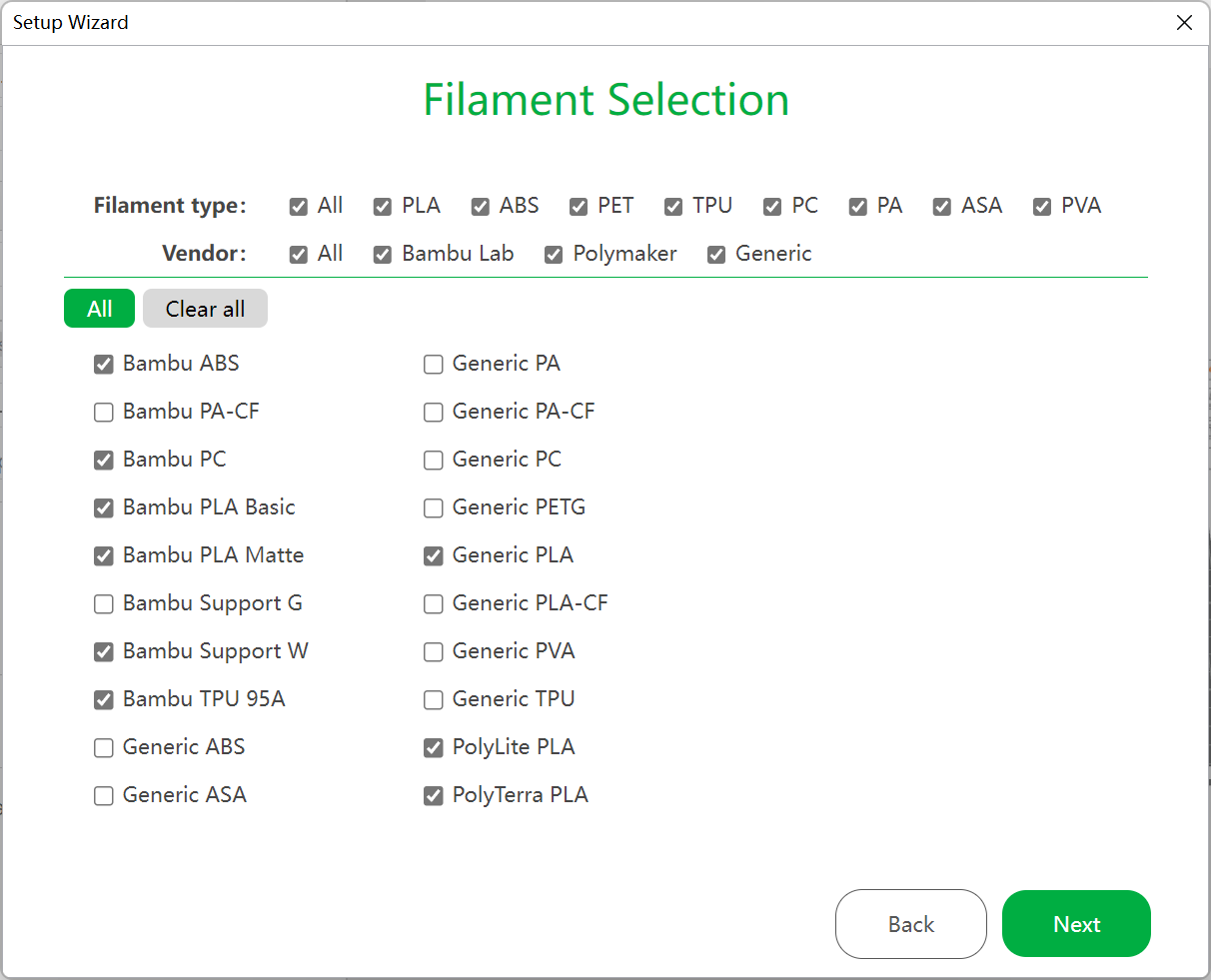
Filament Selection
Select the filaments you would like to see listed in the filament preset list, you can choose as many as are available.
Install Bambu Network Plug-in
The Bambu Network plug-in provides networking capabilities, such as printing via WAN/LAN, remote control, user data sync. The plugin installation requires Internet connection and will be auto-installed (if enabled) after the setup wizard.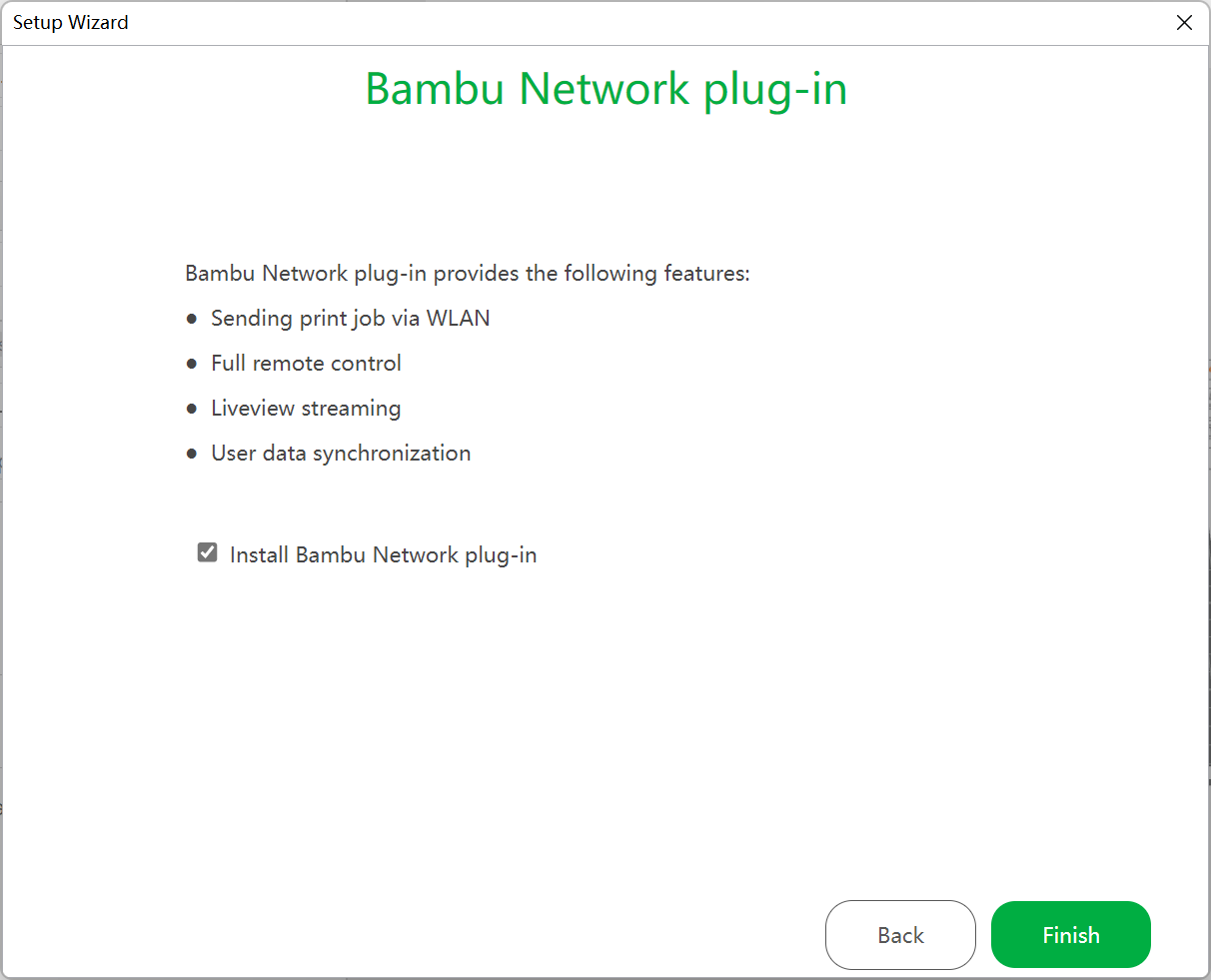
First Print
Log in to your account (optional, but strongly recommended)
[Prerequisite]: You will need the BambuNetworking plugin in order to log in.
This is required to enable print history which allows you to reprint your history models on the Bambu Handy app. Also, your user settings can be synchronized to Bambu Cloud in order to share information among your PC devices. 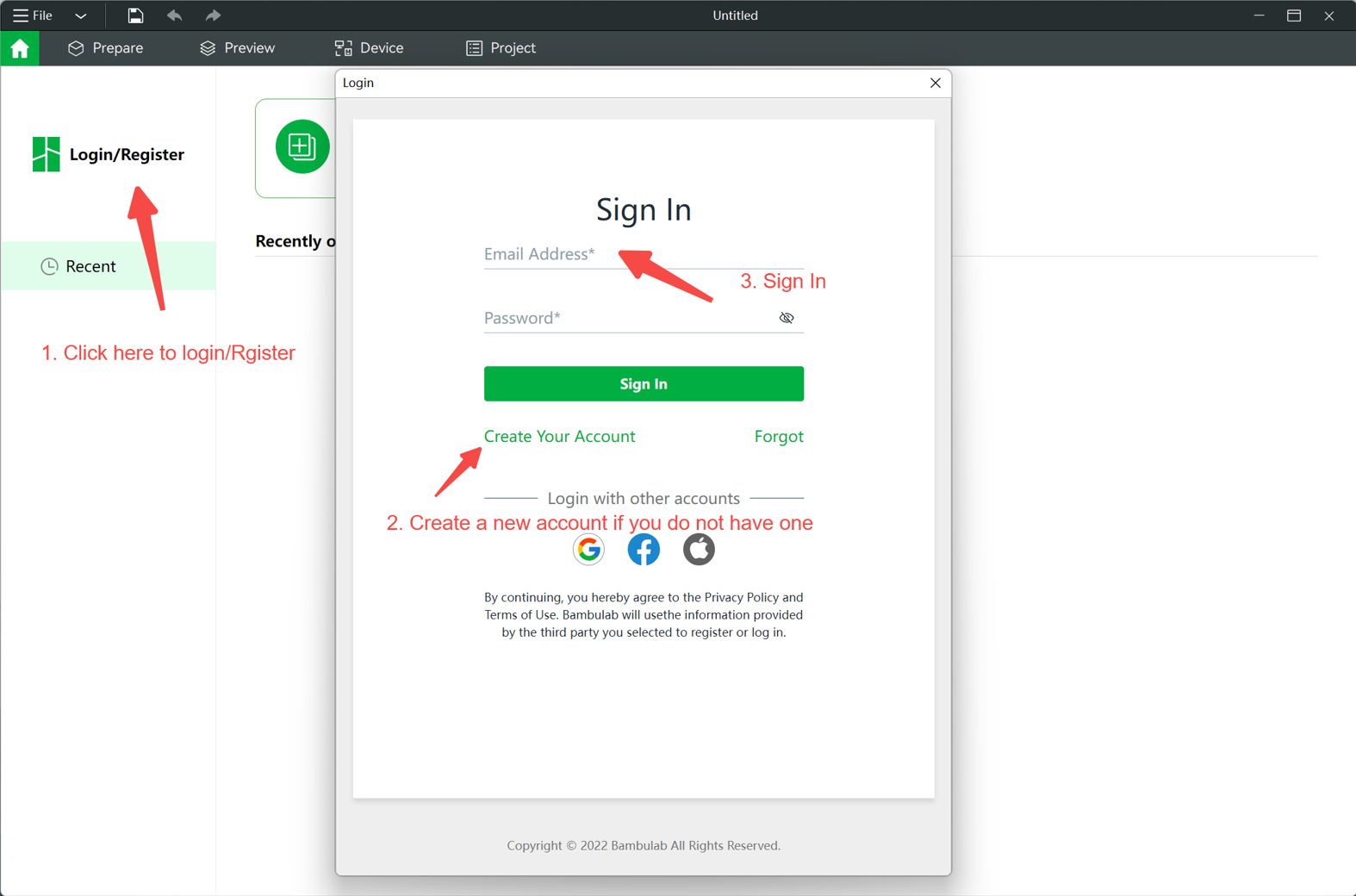
Create a new project
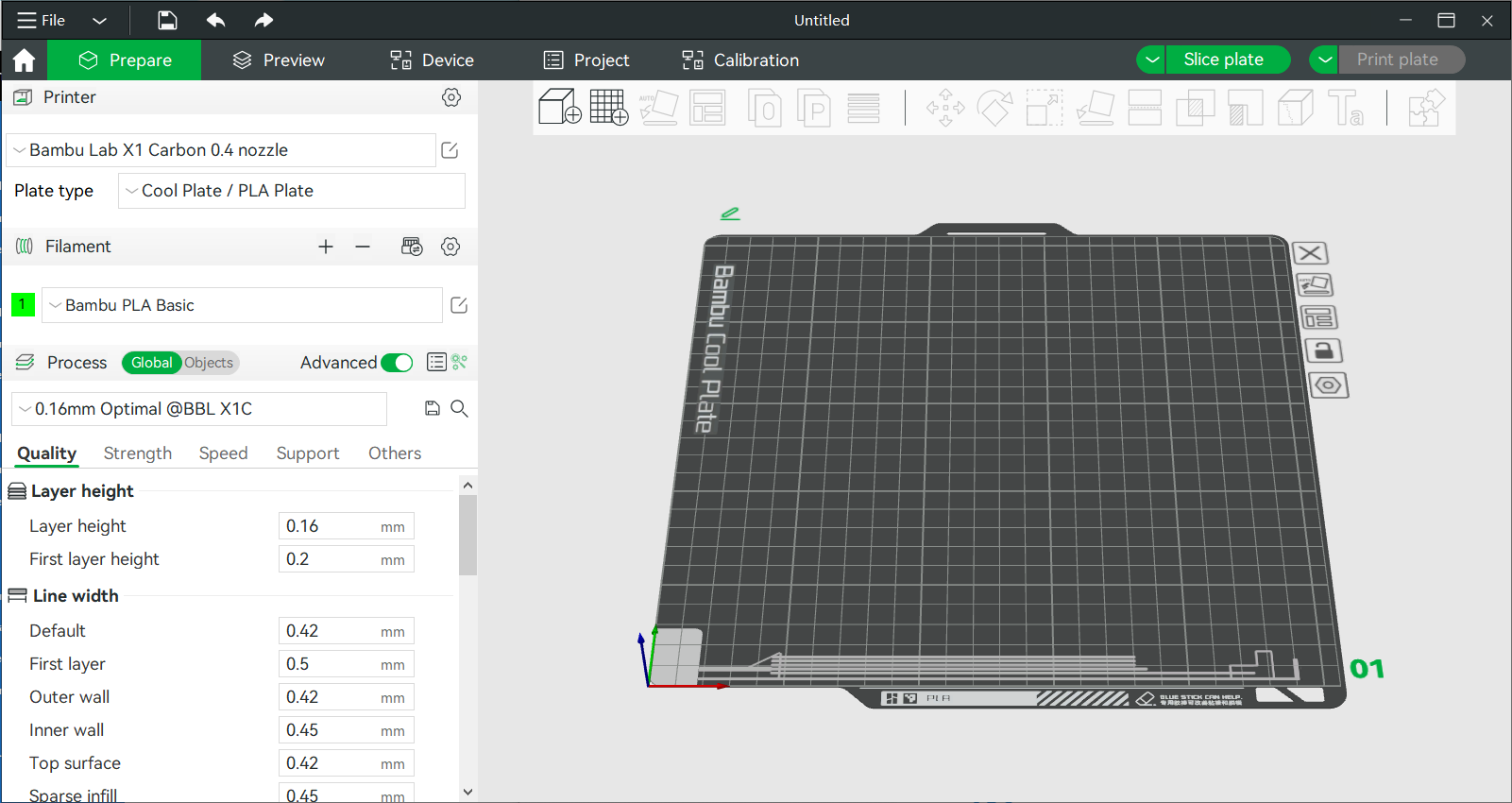
To start slicing a model, click on New Project.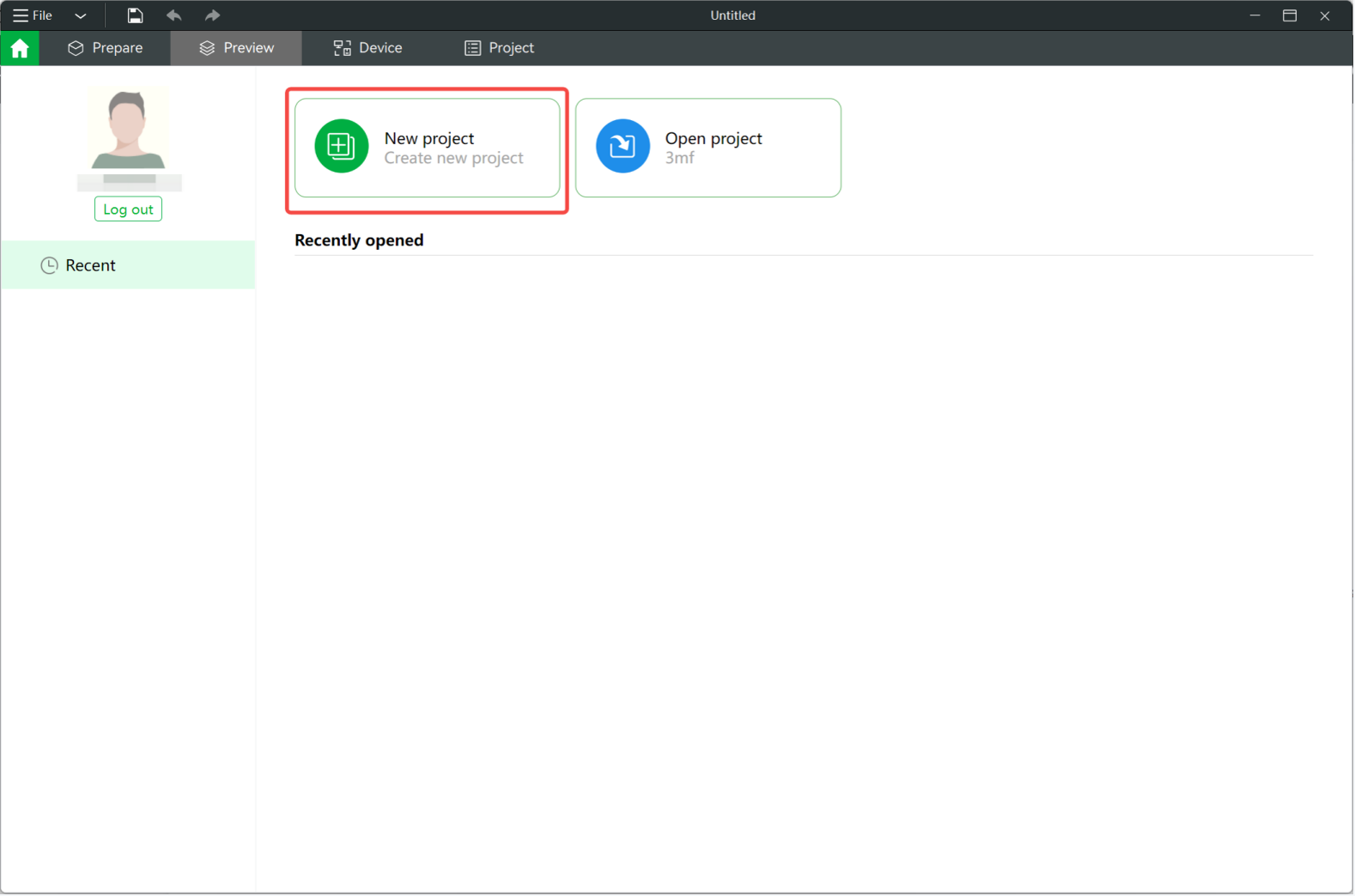
Add a model
On the top toolbar of the preview pane, click on the first icon add to import a model. You can also drag and drop model files from a folder into Studio. Supported files include .3mf .stl .stp .step .amf .obj.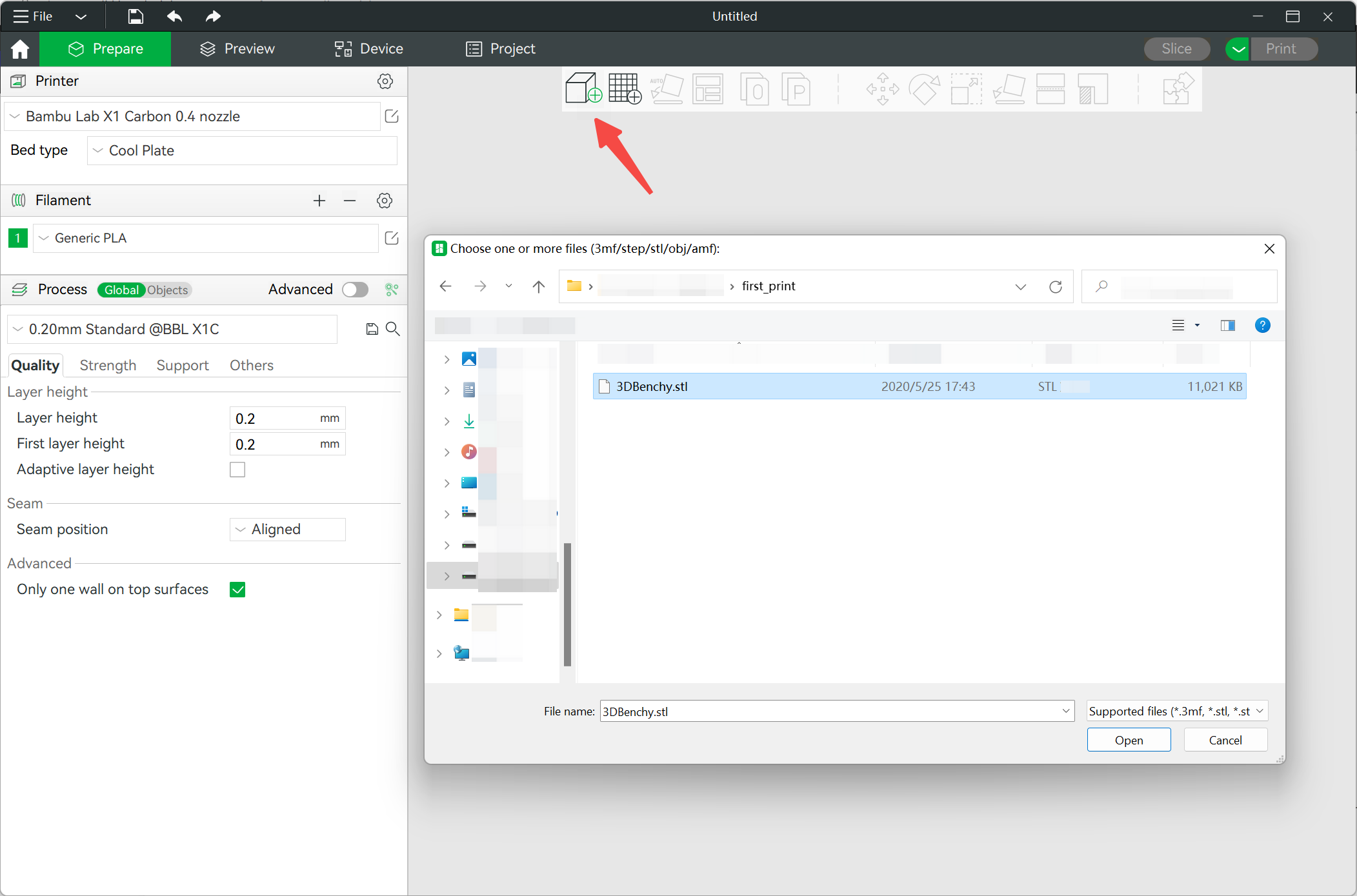
Select Printer/Filament/Process presets
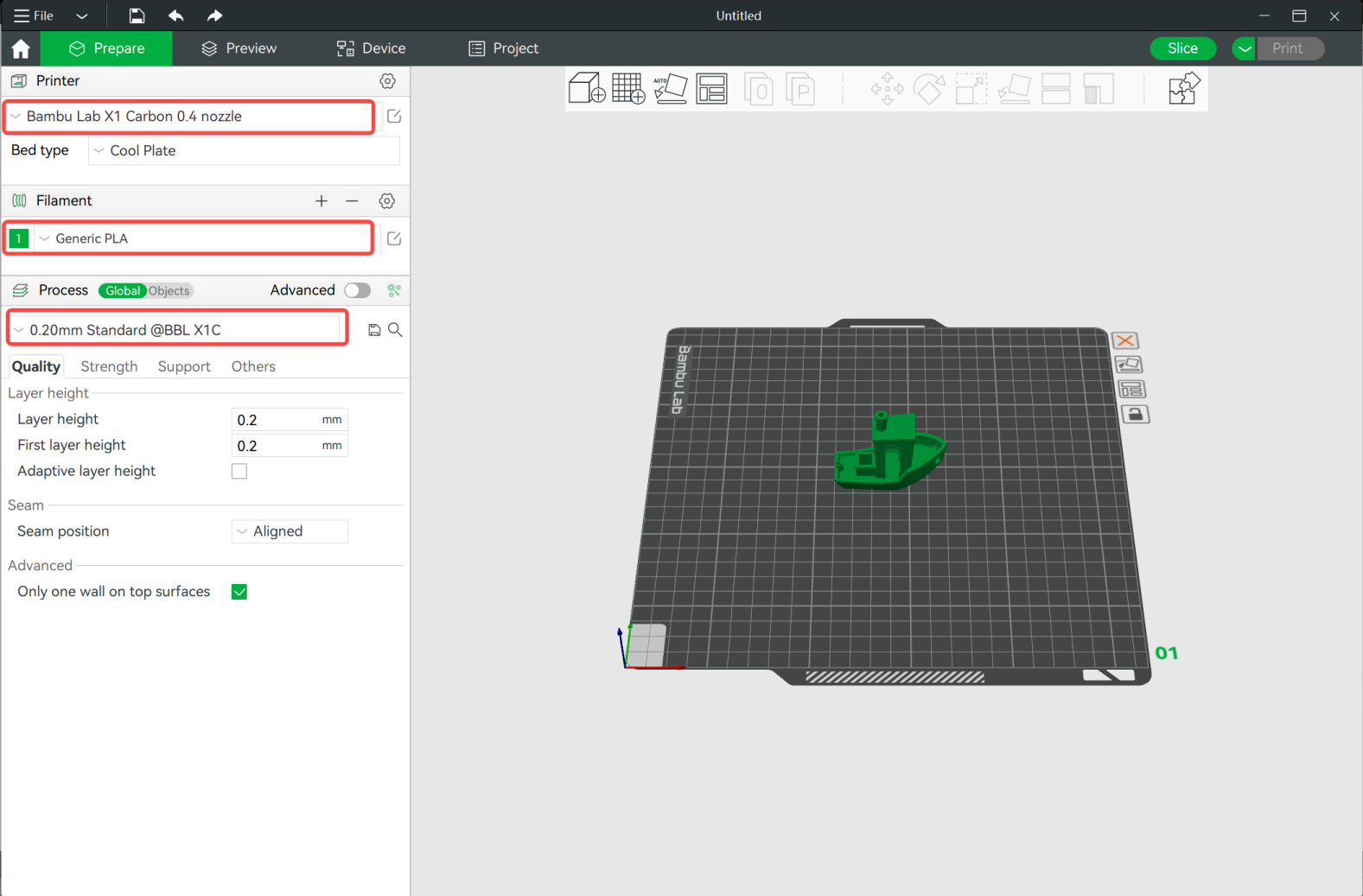
To start slicing the model, you need to choose the presets for the machine you are using, for the filament you will print with and also the settings you want to print the model in.
- Select the printer you are using from the drop-down list under Printer. This will also include the nozzle size you will be printing with
- Under the Filament section, select the type of filament you intend to use from the drop-down list
- Choose the layer height you want your model to be printed in from the Process drop-down menu. Always remember that the smaller the layer height, the longer the print will take. For the majority of prints, a 0.20mm layer height is the norm.
![]()
Slice plate
-
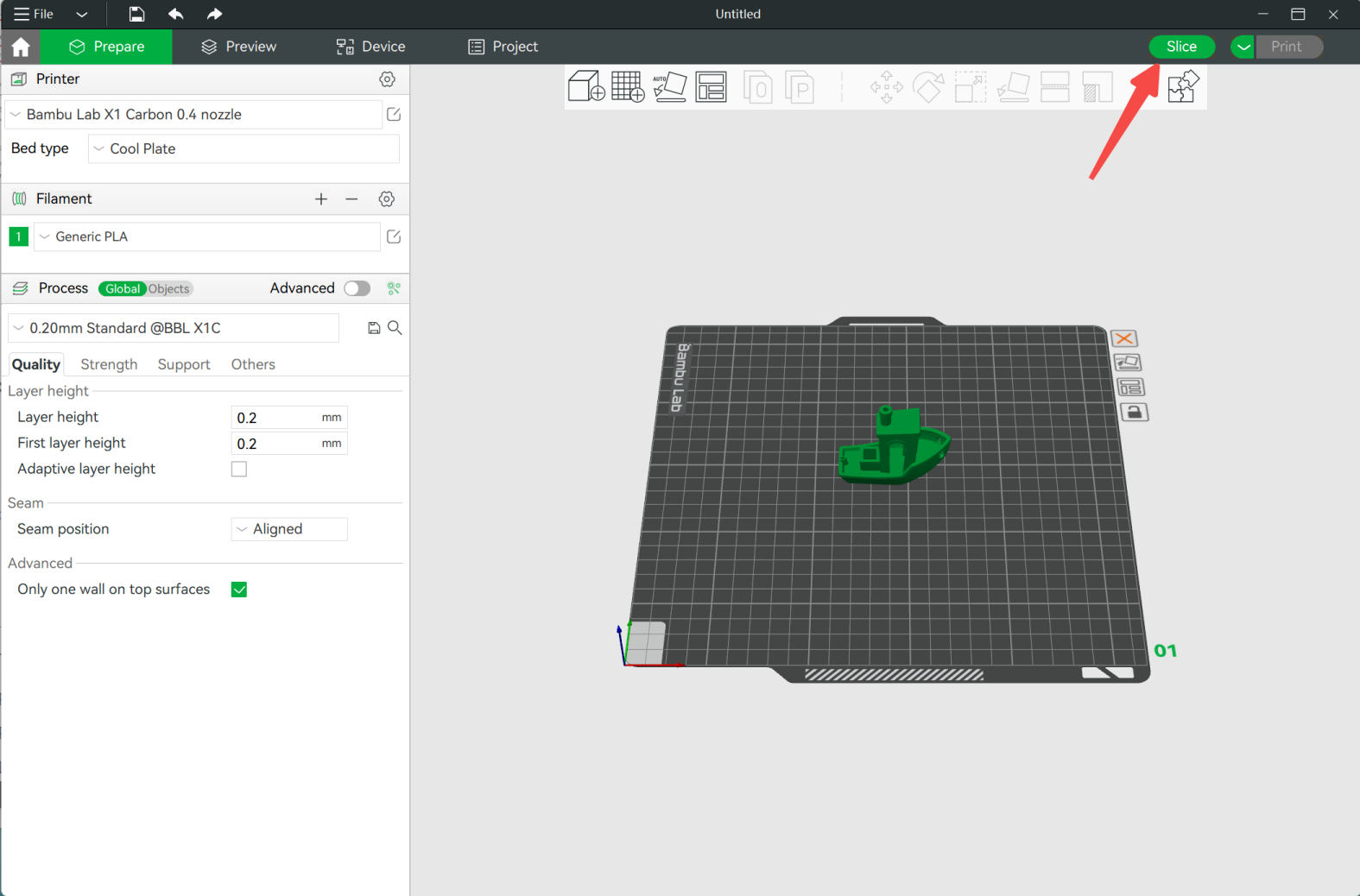
Once done, click on the Slice button located on the top hand right of Bambu Studio.
![]()
-
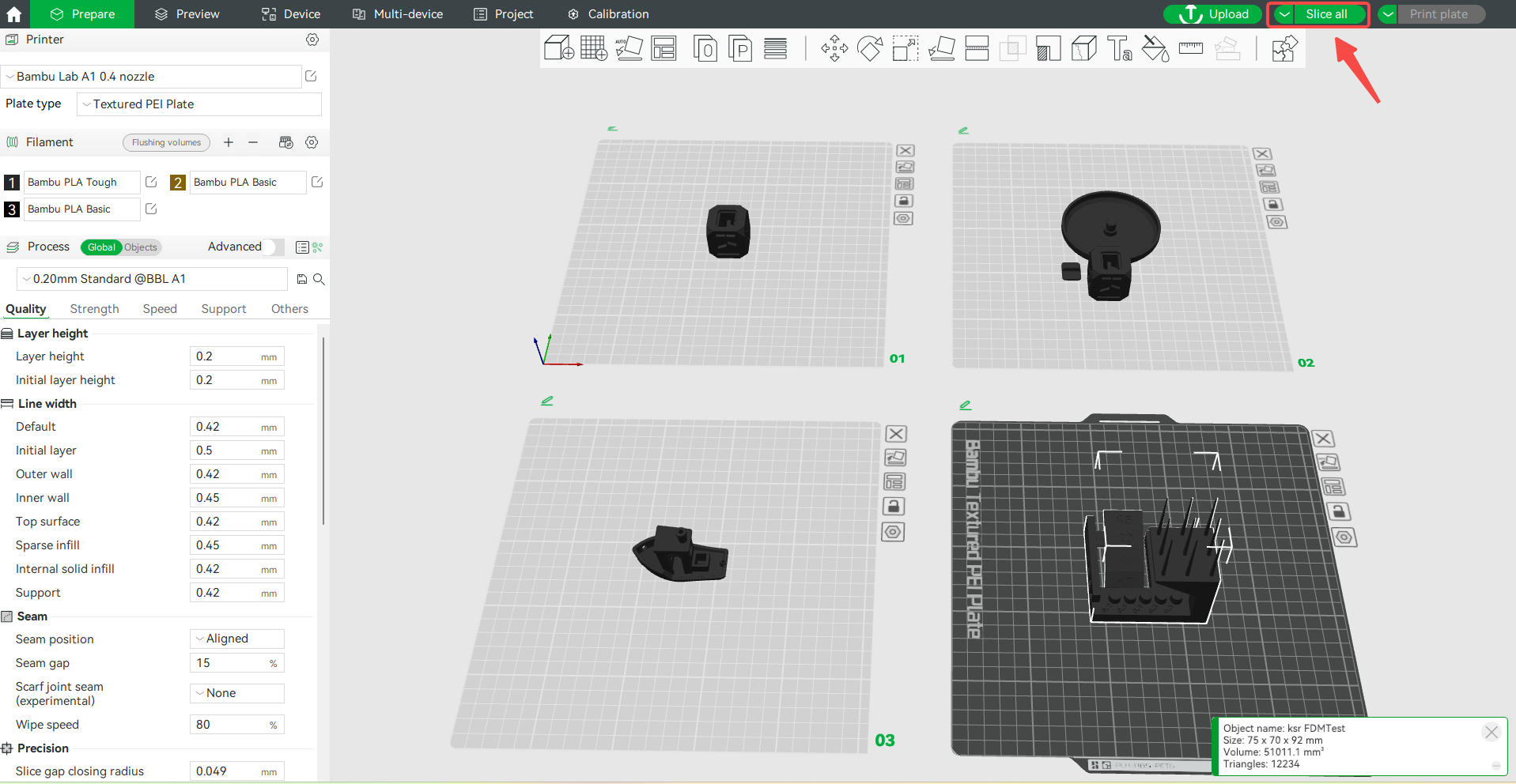
If the model file contains multiple disks, click Slice All in the upper right corner of the screen.
![切片所有.png]()
Once done, the slicer will take you to the Preview pane which will show you what the sliced model looks after processing the .3mf file. The histogram on the right hand side will also show you information on the printing times for each parameter of the print.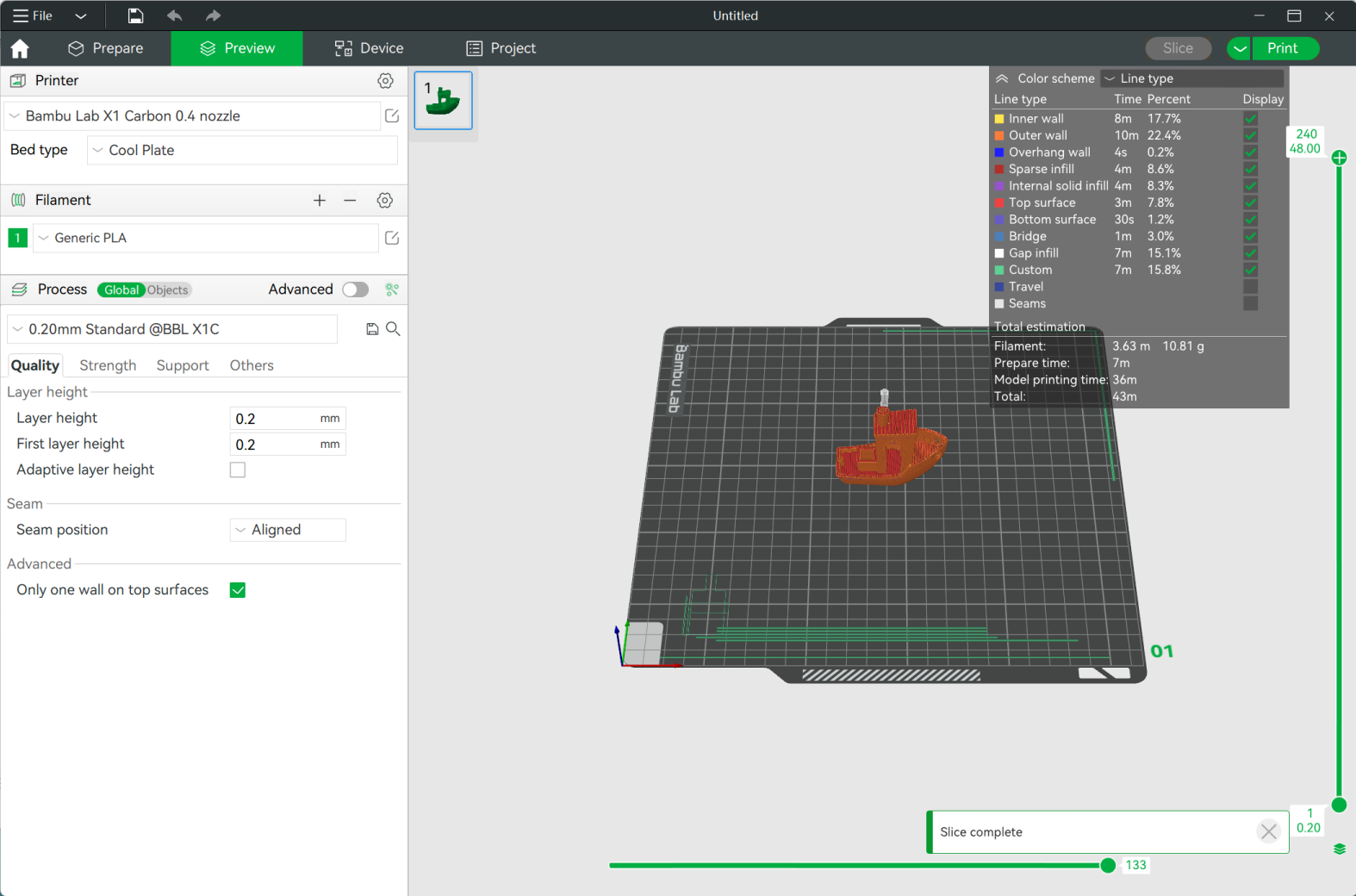
Send print job
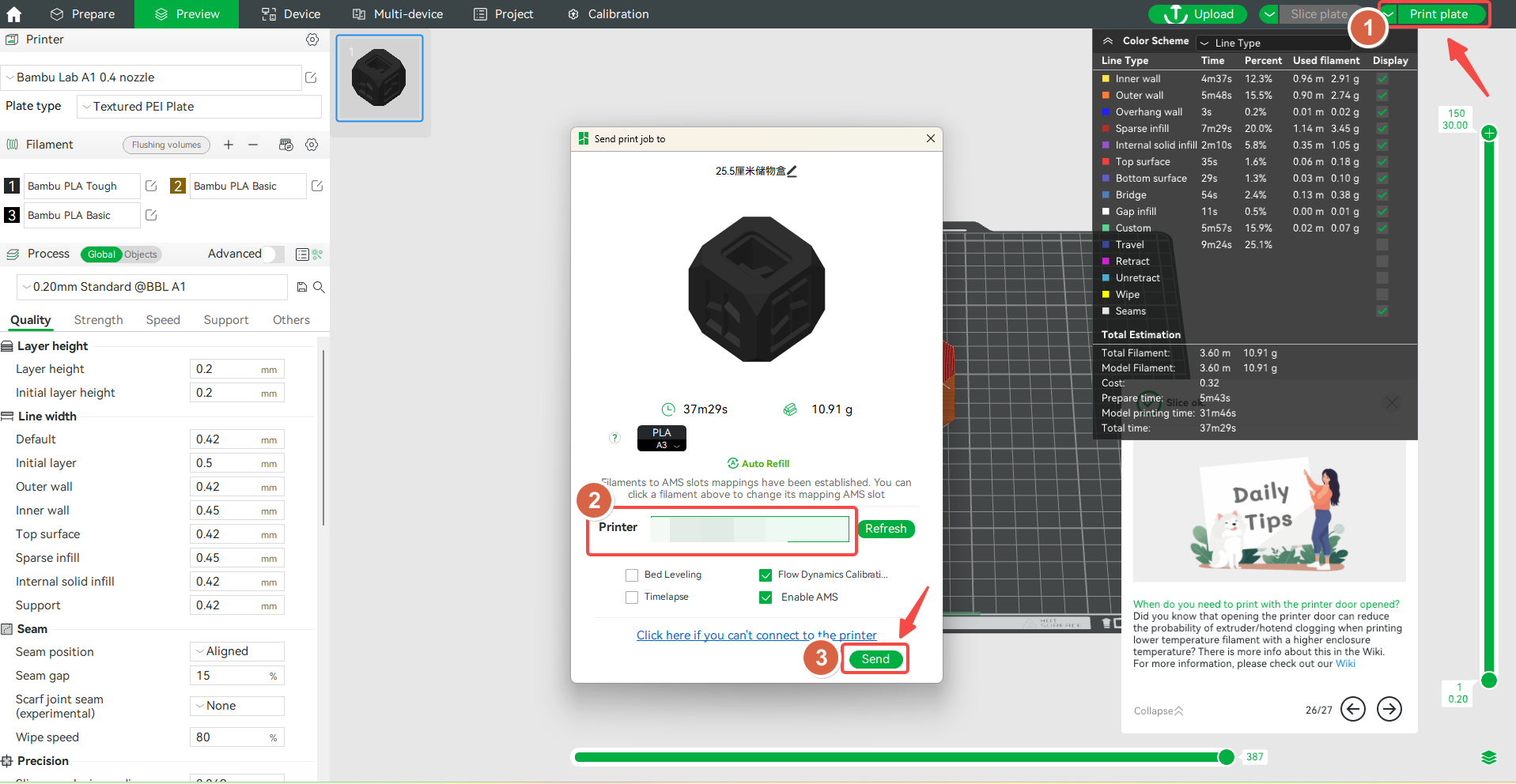
Print plate
Click Print on the top right-hand corner. This will prompt a pop-up window with a quick preview of the model and will also ask you to select the Printer you want to send it to from the drop-down list, and you will also give you the option to choose whether or not you want the printer to perform certain functions like Bed Leveling, flow calibration, etc before the print starts. Once done, click “Send” to send the file to the printer and start printing.
Print all
Please click Bambu Studio Multi Plate Printing Guide for more information.
Note:You will need to have Bambu Network plug-in installed to be able to send files via WLAN, and make sure that the Bambu Studio and the printer are on the same LAN.
Send/Send all
- Click the arrow on the left of Print plate in the upper right corner of the screen, select Send.
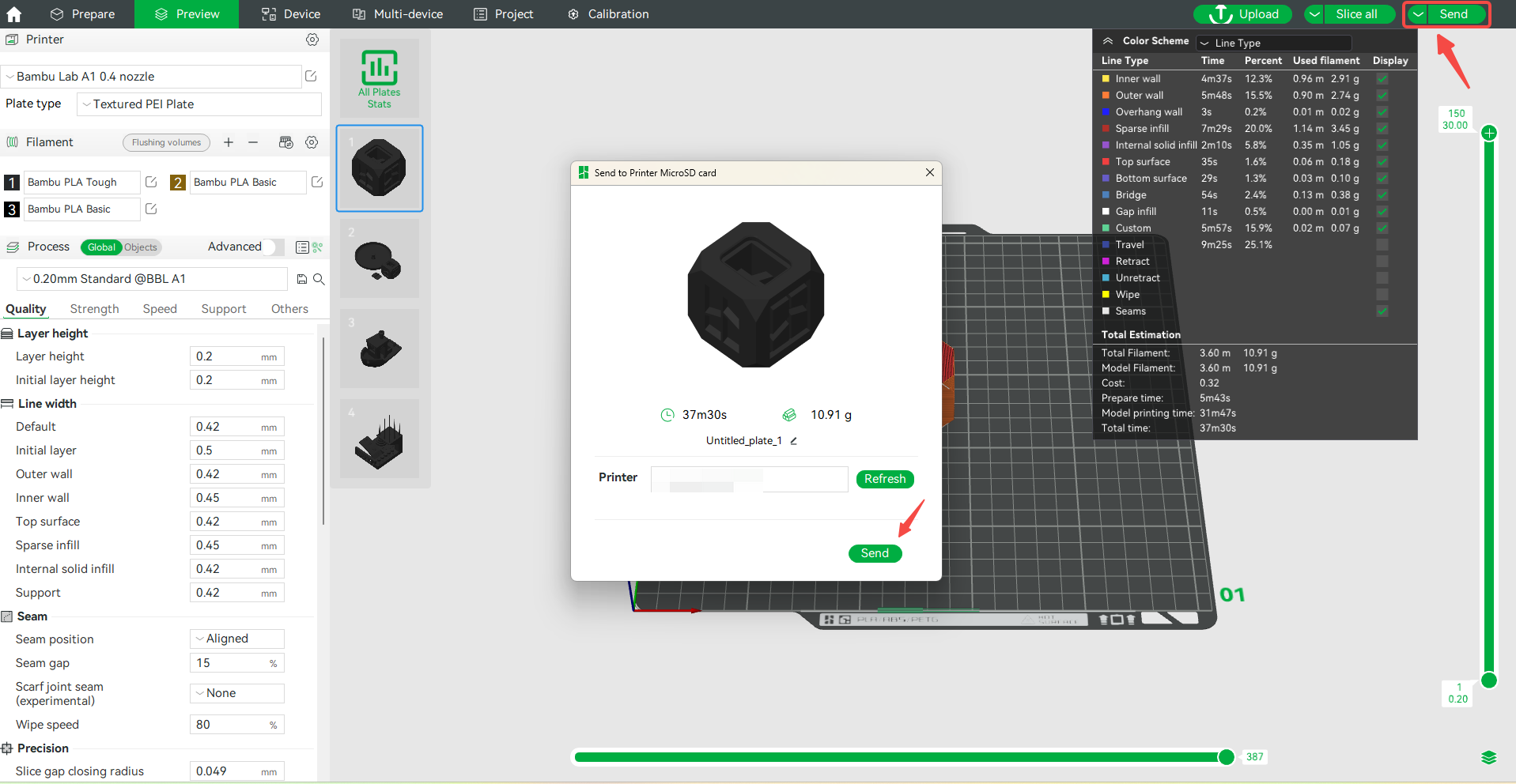
- If the model file contains multiple disks, click the arrow on the left of Print plate in the upper right corner of the screen, and select Send all. A Send to Printer MicroSD card window will pop up on the screen. Select the printer to send to, and the model file can be sent to the SD card of the printer.
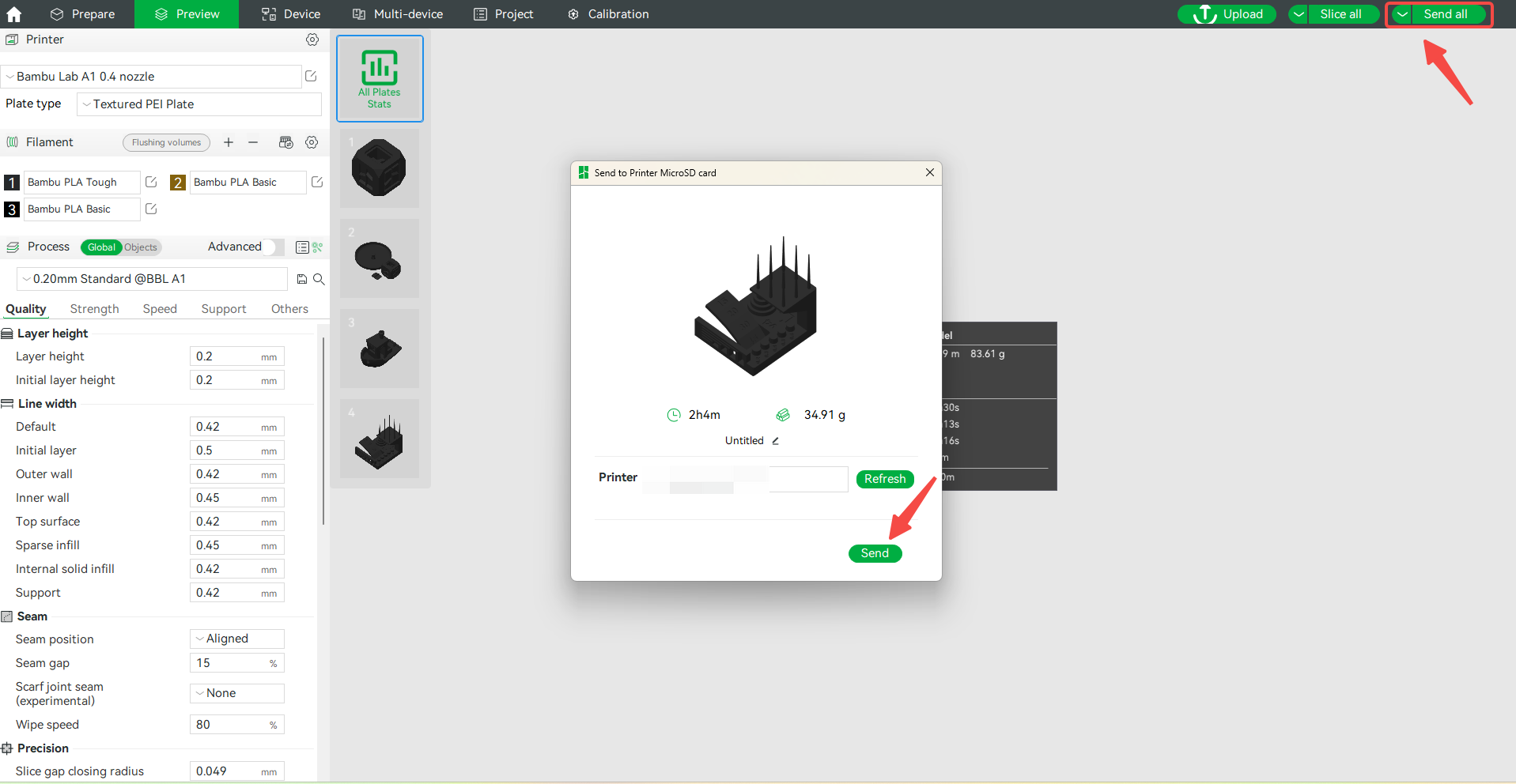
Note: Make sure that the Bambu Studio and the printer are on the same LAN.
Export plate/all sliced file
- Eject the printer SD card from the printer and insert it into your computer. Click the arrow to the left of Print plate in the upper right corner of the screen and select Export plate sliced file, click the selected Export plate sliced file to confirm.
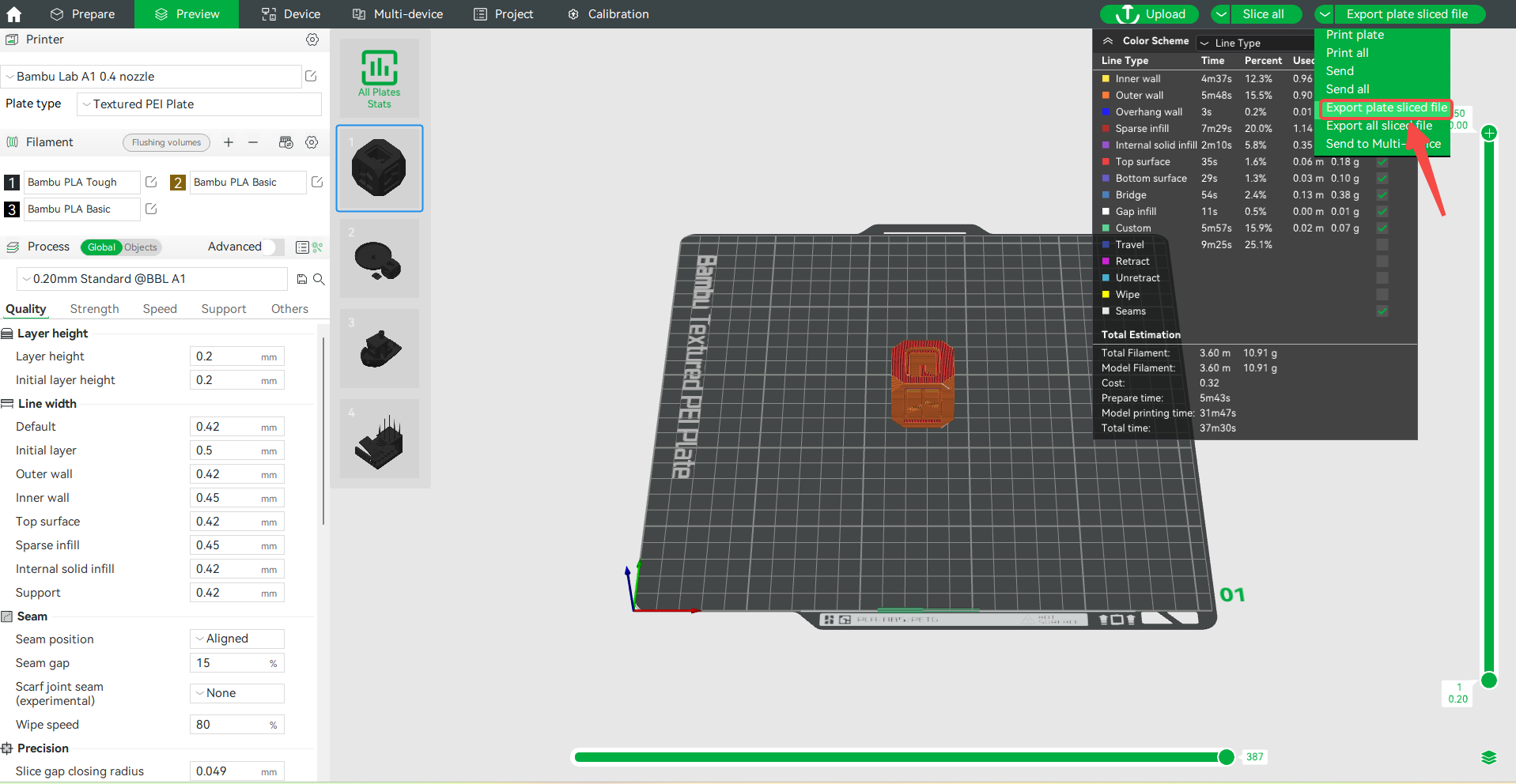
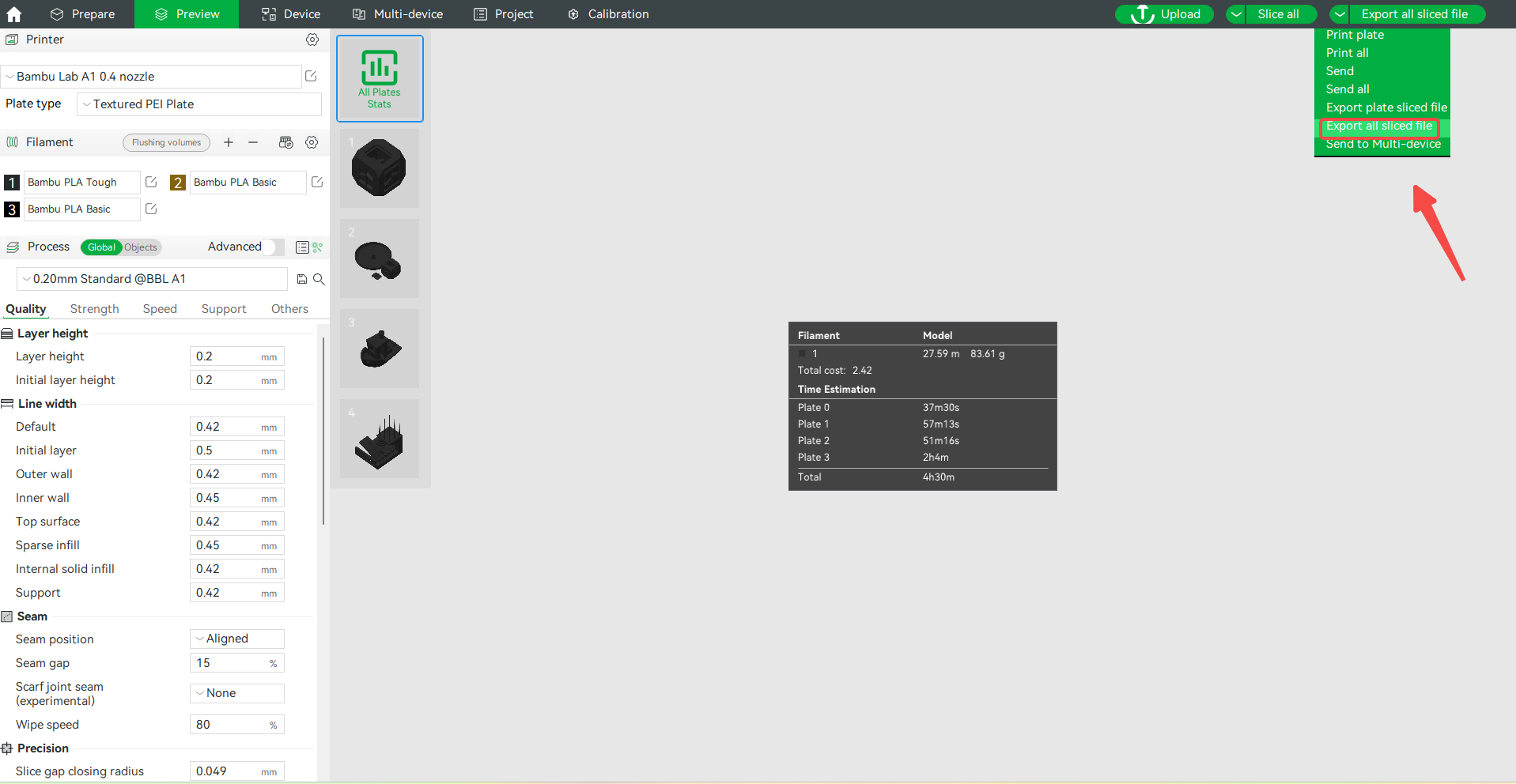
- If the model file contains multiple disks, you can click the arrow to the left of Print plate in the upper right corner of the screen and select Export all sliced file.
A file explorer window will pop-up in order for you to select the location of the SD card. Then, click on Save and the file will be exported to the SD card.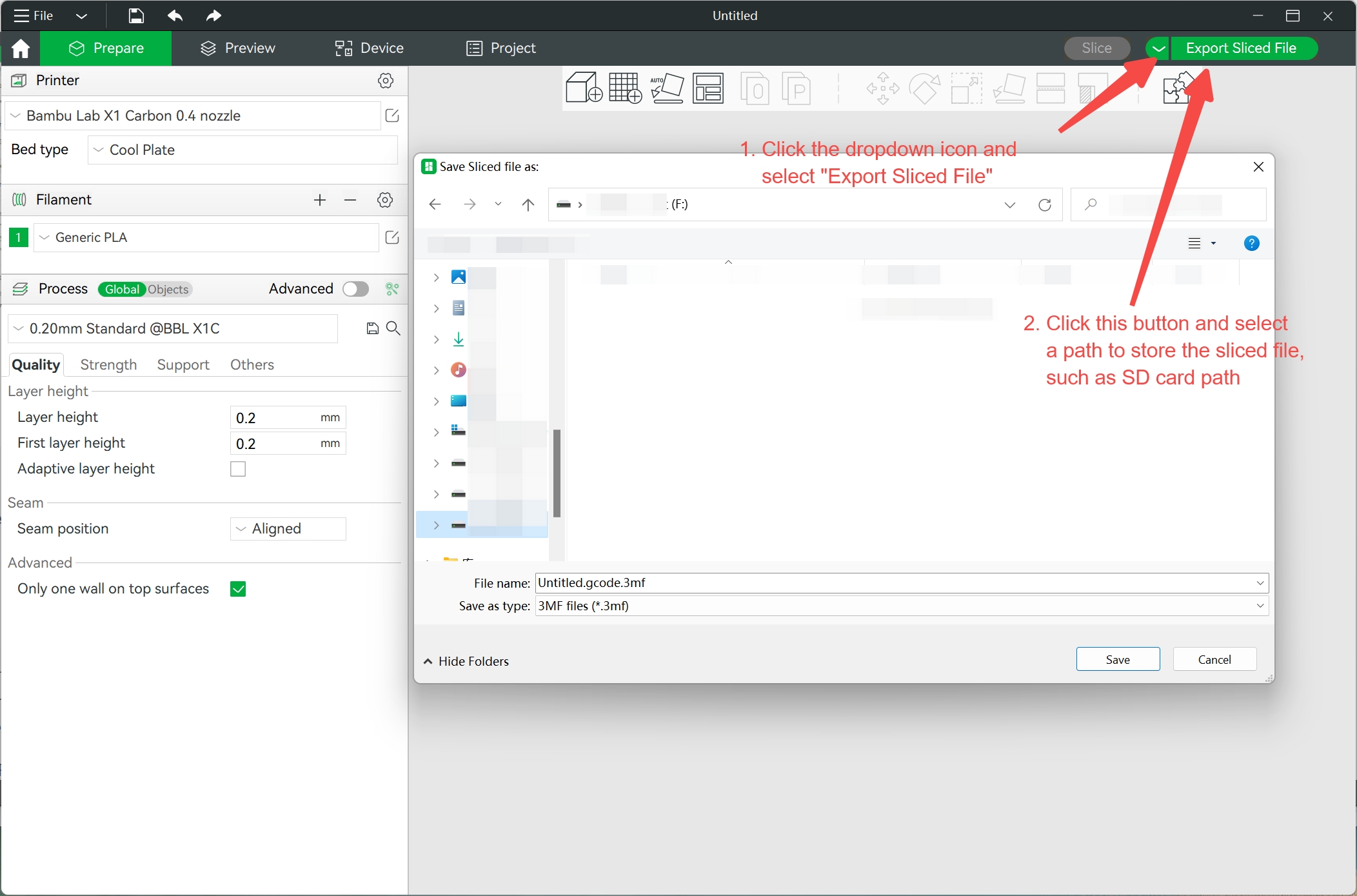
Once saved, take the SD card and insert it into the tiny slot located on the right-hand side of the Printer Display screen. Press the folder icon on the left-hand menu selection on the screen, and then select SD Card option from the top menu. Click on the file you just exported to start printing.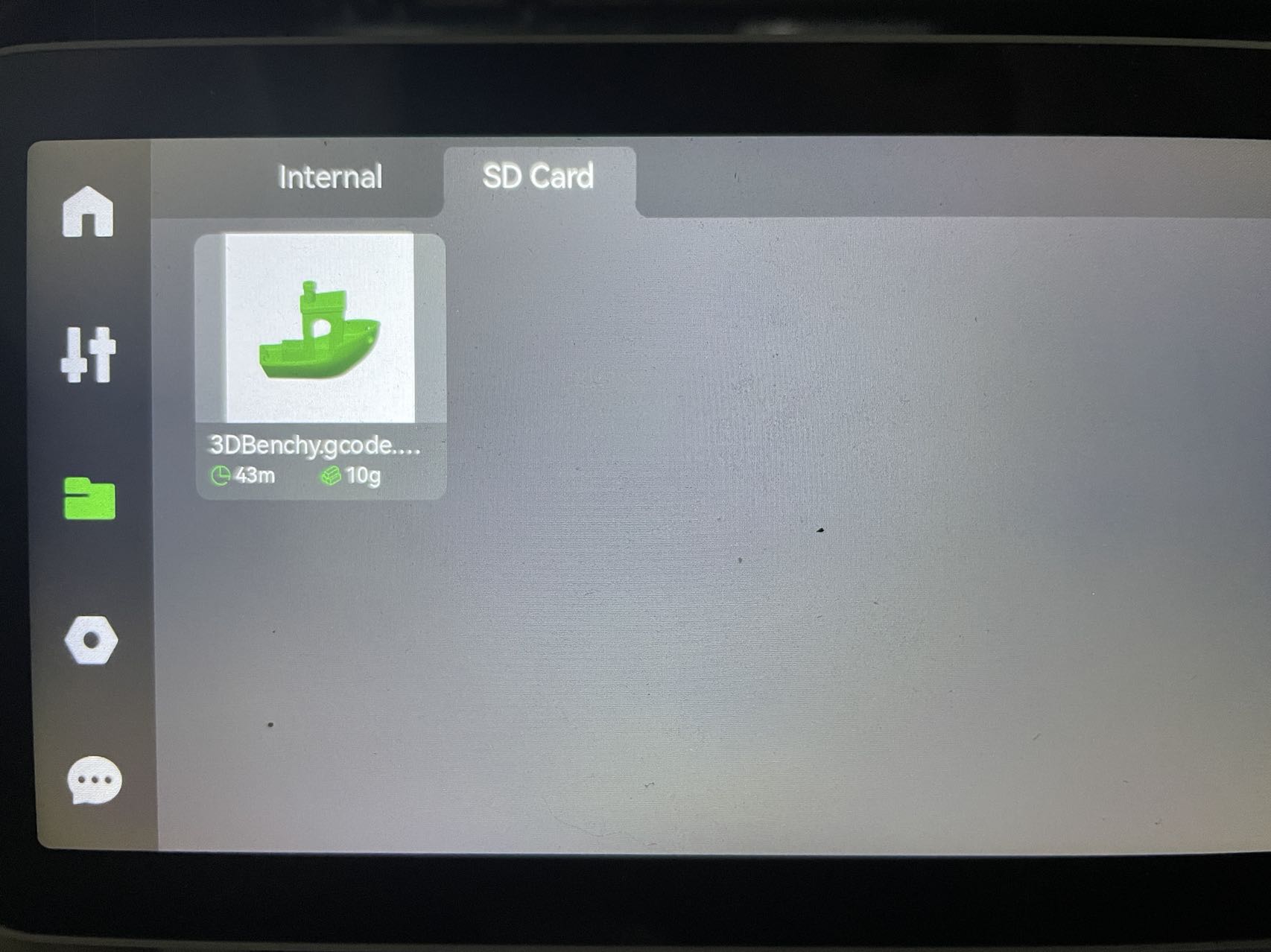
For a detailed guide to printing from the SD card for each model, see:
How to print from Micro SD Card on Bambu Lab X1
How to print from SD card using Bambu Lab P1 Series 3D printer
How to print from SD card using Bambu Lab A1 Series 3D printer
Send to Multi-device
Please click Multi-device management for more information.
Remote Control
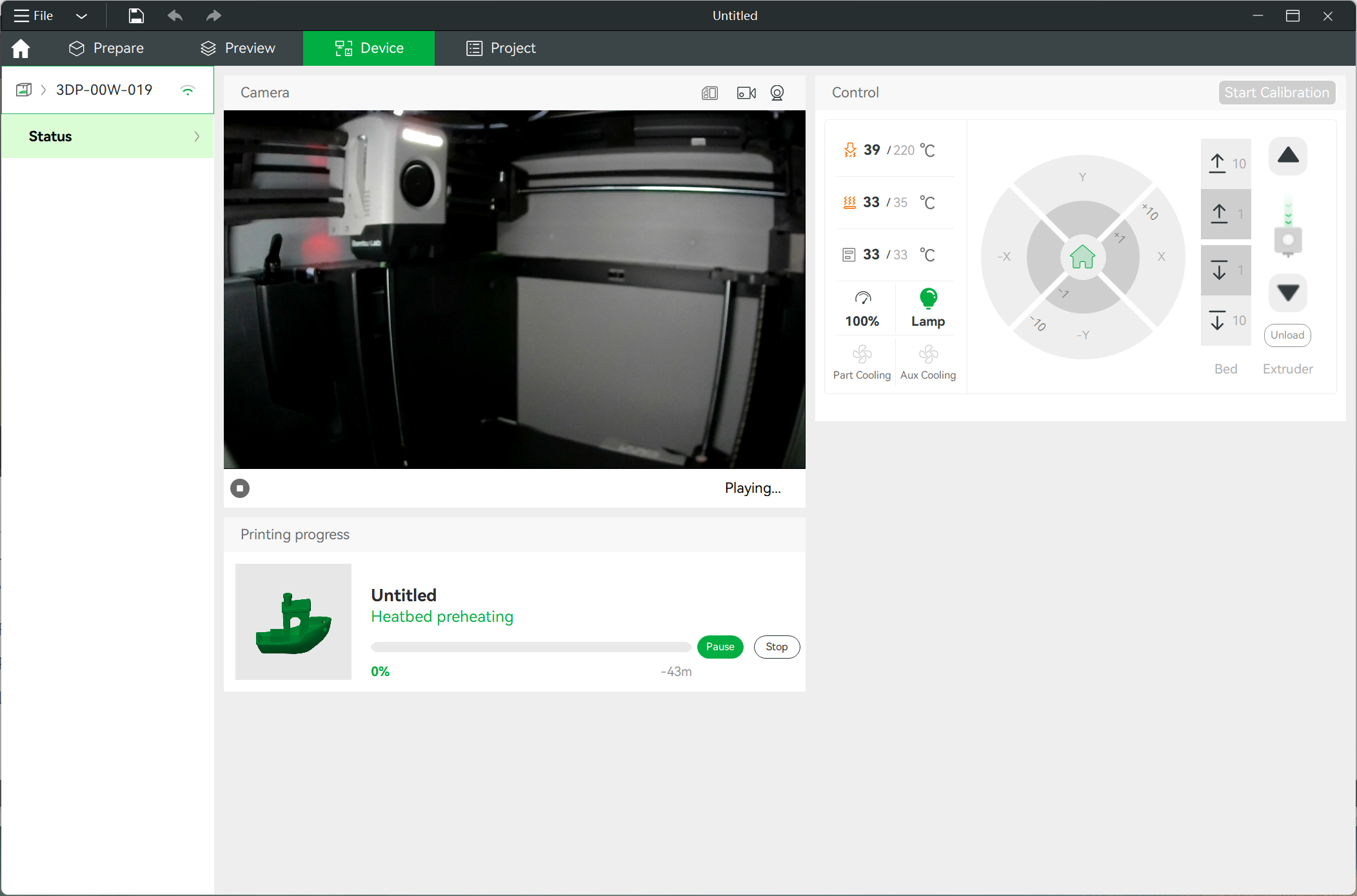
Going to the Device surface on the Studio will allow you to control and monitor the print remotely in real time (Please check this wiki: remote-control). If you have a camera installed in your machine (Standard on the X1C), you can also watch a live feed of the print remotely
Note: You will need to have Bambu Network plug-in installed to be able to access the machine through this process.
發表評論